
TL;DR: To print mailing labels from Excel, create a clean spreadsheet with headers, then open Microsoft Word and use Mail Merge → Labels. Choose the correct Avery template, link your Excel file, insert fields, update all labels, and print. For scale, Rollo Ship imports Excel/CSV to batch 4×6 thermal labels at up to 150 mm/s.
You’ve got orders, addresses, and a ticking clock. If you’re wondering how to print mailing labels from Excel without wasting an afternoon on formatting, you’re in the right place. This guide shows the classic Word Mail Merge workflow and a smarter route for small and midsize sellers: importing a CSV or Excel file into Rollo Ship to batch-print carrier-ready labels fast.
What’s Inside
What’s the smartest way to print mailing labels from Excel?
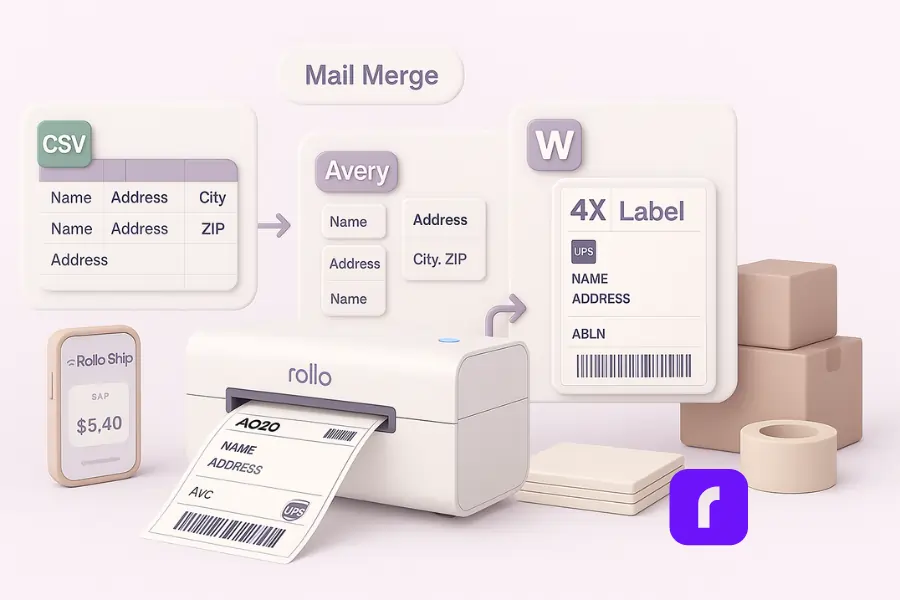
The most reliable path is Microsoft Word’s Mail Merge with an Avery label template. It maps your Excel spreadsheet columns into formatted label sheets. If you’re shipping at scale, use Rollo Ship to import CSV/Excel, then batch-print 4×6 thermal labels—no template fiddling or alignment drama.
Why this works: Word’s Mailings tab was built to print labels from structured data. It handles the address block, merge fields, and the label options dialog box. But when daily volume grows, a shipping tool that loads data, arranges fields, and prints directly to thermal is the time-saver your ops need.
Can you print labels directly from Excel without Word?
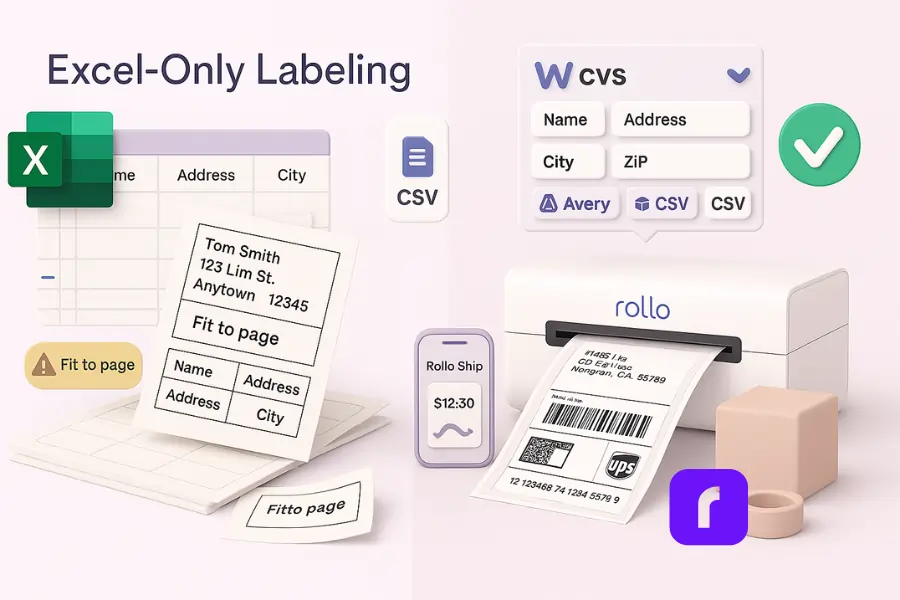
Yes, you can format cells and print mailing labels straight from an Excel file, but it’s risky. Alignment on plain paper rarely matches pre-cut label sheets, and every change can nudge text off the first label. Word Mail Merge—or Rollo Ship—prevents those headaches.
When Excel-only printing is okay
If you’re doing a tiny batch—say a dozen labels—and you don’t mind a test print or two on plain paper, laying out a grid can work. Keep your first row as headers. Set row height and column width to match the product number you’re using (e.g., Avery 5160). Expect trial and error.
Why business users should avoid Excel-only
You’ll spend more time than you save. Small spacing differences, printer drivers, and “Fit to page” settings mess up results. If you’re shipping daily, move to Mail Merge or a shipping app that accepts CSV. Your future self will thank you.
Keywords woven: print labels, excel file, test print, first row, row, column, format, plain paper, product number, check.
How to Print Mailing Labels from Excel with Mail Merge?
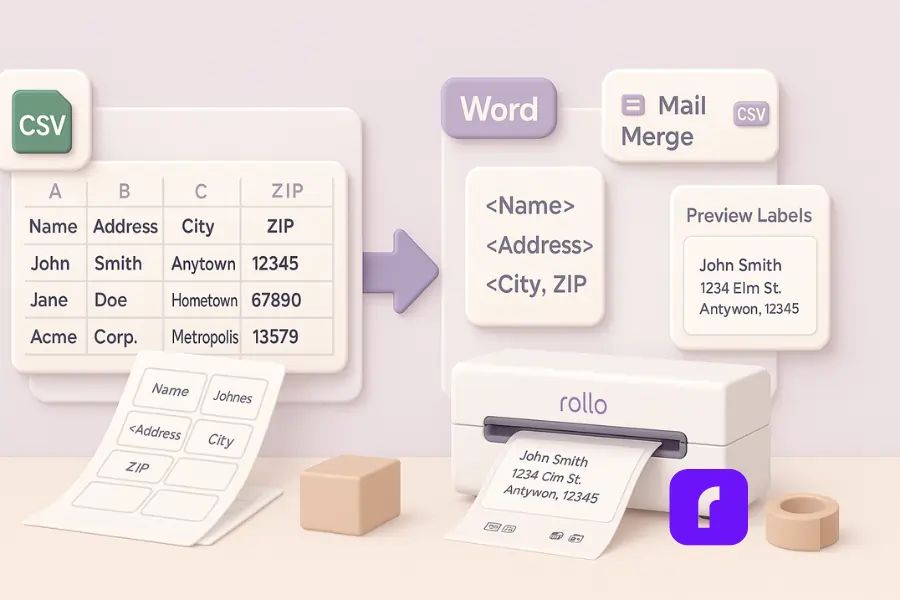
Open Microsoft Word, go to Mailings → Start Mail Merge → Labels, choose your Avery template, then Select Recipients and pick your Excel spreadsheet. Insert merge fields (or the Address Block), Preview Results, and Finish & Merge to generate individual documents you can print.
Preparing your Excel file (clean data = clean labels)
These prep steps are essential if you want your labels to look right the first time.
- 📋 Use the first row for clear headers: First Name, Last Name, Address, City, State, Zip.
- 🏷️ Put each address on one row. No blank rows inside the data.
- 🔢 Ensure zip codes stay as text (leading zeros matter). In Excel, Format → Text for the ZIP column.
- 💾 Save as .xlsx or .csv. If using Google Sheets, download as CSV or Excel and continue.
If your sheet came from another system, add a quick sanity check on spacing and capitalization before you merge.
Setting up label templates in Word
- 👣 In Word: Mailings → Start Mail Merge → Labels.
- 📂 The label options dialog box opens. Choose your vendor (Avery), and select the product number that matches your sheets.
- ✅ Click OK to create a page of empty label cells.
Tip: If your exact product number isn’t listed, click Details to review measurements or New Label to create a custom template.
Connect Excel and map fields
- 📂 Select Recipients → Use an Existing List, then locate your Excel file.
- 🔢 Pick the correct table (sheet) and confirm the header row.
- 🏷️ Use Address Block for a fast layout or insert Merge Field items (e.g., First_Name, City, State).
- 👣 Click Update Labels so the layout copies to every cell.
Preview, test, and print
Before you use any label sheets, do a dry run to avoid waste.
- 👀 Click Preview Results. Scan for line breaks, text size, and spacing.
- 📝 Do a test print on plain paper. Hold it behind the label sheets to check alignment.
- ✅ If everything looks right, Finish & Merge → Edit Individual Documents and print.
When the layout is perfect, save this document as your master so future add ons are simple. Need a step-by-step? Here’s our guide on making address labels in Word.
Why aren’t my labels printing correctly from Excel?
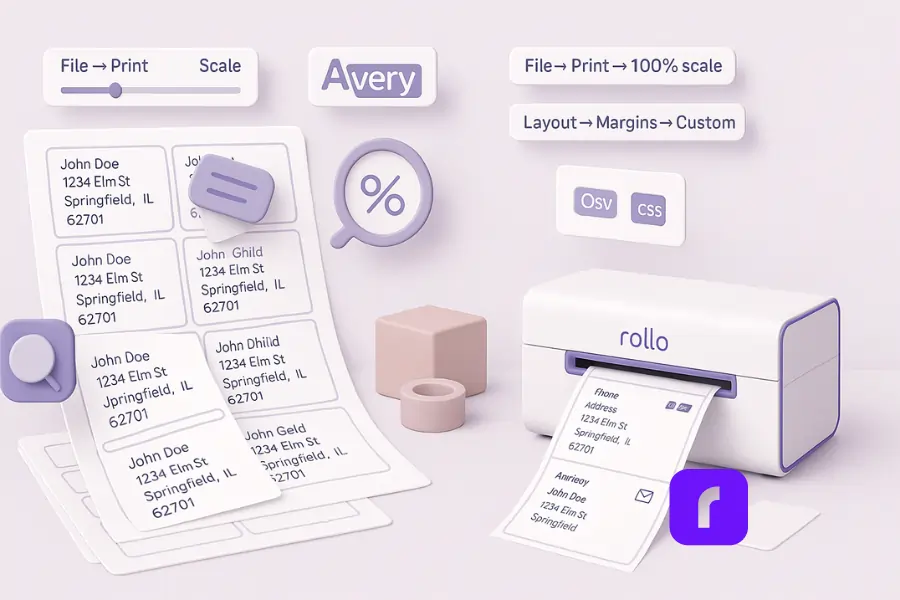
Misalignment usually comes from the wrong template, printer scaling, or margins. Confirm the Avery product number, set scale to 100%, and print on plain paper first. If labels still drift, adjust top/left margins in Word or re-map fields.
Common misalignment culprits
When things slip, it’s usually one of these.
- 🔢 Scale changed: “Fit to page,” shrink/expand, or printer “features” that override sizing.
- 🏷️ Wrong template: Similar codes have slightly different details. Always double-check the product number.
- 📂 Spacing in data: Hidden spaces or extra line breaks in the spreadsheet push text down.
- 📝 Font size creep: 12pt may be too large depending on your layout.
Fixing one item often resolves the chain reaction across the whole page.
Quick fixes that work
Run through these in order; each step takes under a minute.
- 👣 In Word: File → Print → Settings, confirm 100% scale (no “Fit”).
- 📝 In the label document: reduce font size, tighten line spacing, or nudge margins via Layout → Margins → Custom.
- ✅ Clean data in Excel: trim spaces, review each column, and ensure consistent format.
- 👀 Test print again before the real run.
If misprints persist, re-check the template code and try a different printer driver for a clean slate.
How to print mailing labels from Excel in bulk?
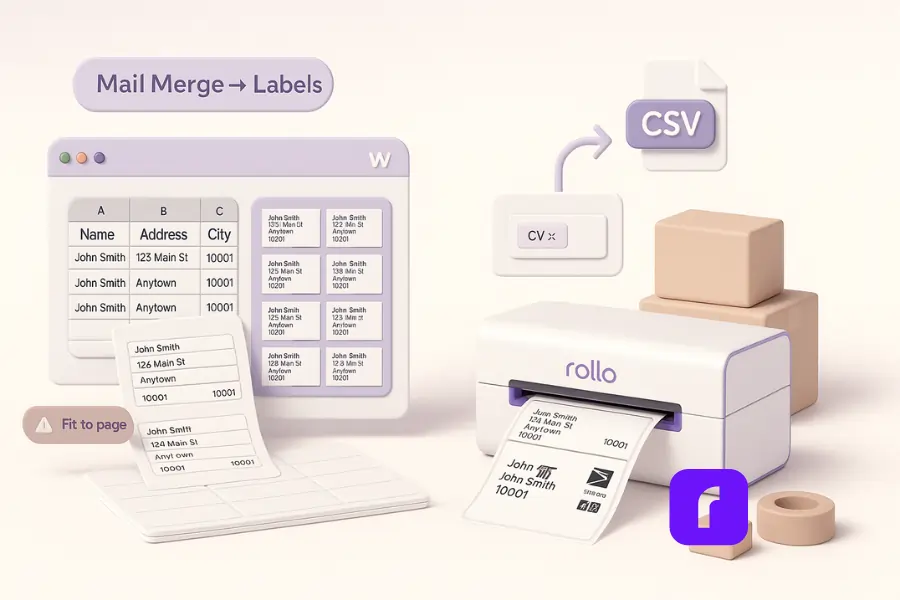
Build a complete list in Excel, then run Mail Merge to generate a full page of labels. For larger batches, import CSV or .xlsx into Rollo Ship to automatically load, process, and batch-print 4×6 thermal labels—carrier-ready and fast.
Traditional bulk: Mail Merge at scale
If you’re staying in Word, keep the workflow tight and predictable.
- 📂 Keep your data clean. Big tables magnify little mistakes.
- 💾 Use Edit Individual Documents to create a master Word file you can save.
- 👀 Always preview and test before printing stacks of sheets.
This gives you version control and a file you can hand off to teammates.
Faster bulk: Rollo Ship automation
If speed matters, here’s the streamlined path that slashes clicks.
- 📂 Import CSV/Excel. Map fields once (name, street, city, zip).
- 👣 Select service, compare rates, and print 4×6 labels to a Rollo Wireless Printer.
- ✅ Skip the template. Skip the merge. Hit print and move on.
Once mapped, future imports take seconds—perfect for daily fulfillment.
Print Smart, Not Harder
Save hours every week by skipping Mail Merge. Import your Excel or CSV list into Rollo Ship and batch print 4×6 shipping labels instantly.
What’s the best printer for printing mailing labels from Excel?
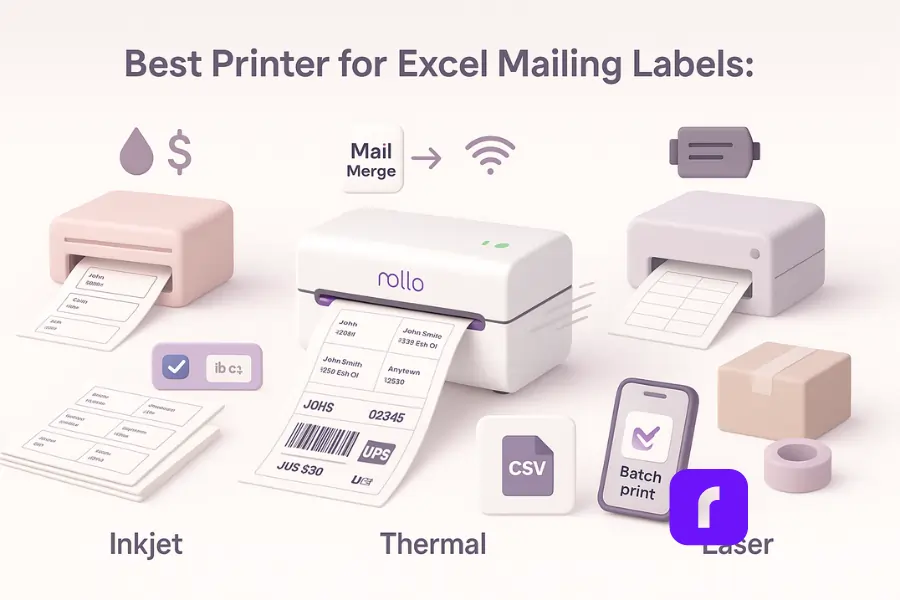
A thermal printer like Rollo is ideal. It doesn’t need ink or toner, prints fast, and produces crisp barcodes on 4×6 labels. For sellers, thermal beats inkjet/laser on speed, cost, and reliability—especially when paired with Rollo Ship.
Thermal vs. inkjet/laser (quick table)
| Printer Type | Pros | Cons | Best For |
|---|---|---|---|
| Thermal (Rollo) | No ink, fast, 4×6 ready, sharp barcodes | Needs thermal label rolls | Daily shipping |
| Inkjet | Low upfront cost | Ink costs, smudging, slower | Occasional mail |
| Laser | Sharp text, durable | Toner costs, sheet setup | Office docs |
Why Rollo fits e-commerce
Here’s why many sellers choose this setup for everyday shipping.
- 🏷️ Works with universal 4×6 format; simple install; Wi-Fi/USB.
- 📂 Pairs with Rollo Ship for batch jobs.
- 💡 Eco-friendly thermal materials available.
It removes fussy steps that slow packing and label printing. Explore the latest barcode printer innovations that make branded labels easier and more professional.
Upgrade to Wireless Printing
Ditch ink and misaligned sheets. The Rollo Wireless Label Printer delivers crisp, carrier-ready labels at lightning speed.
Are there better alternatives than Excel for mailing labels?
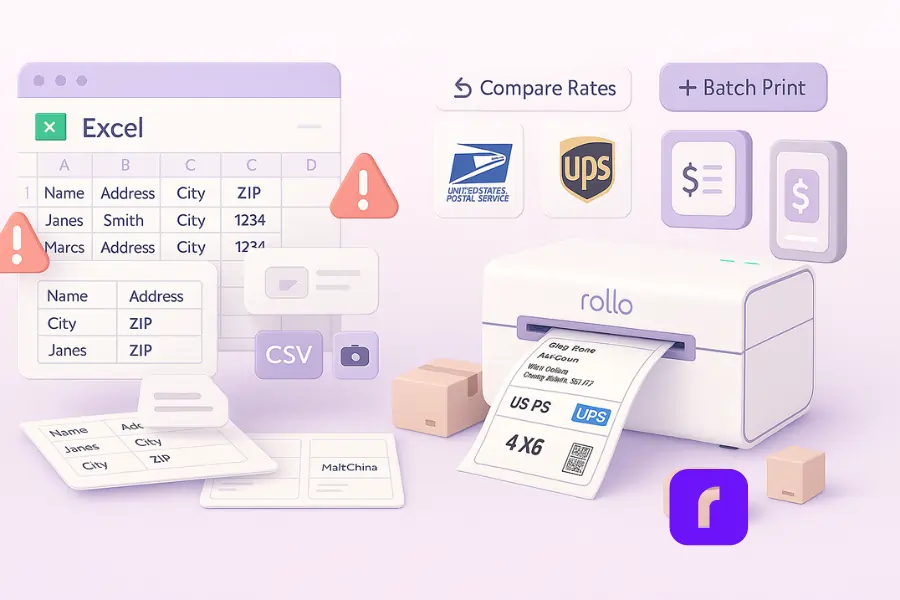
Yes. Many sellers move from Excel to shipping platforms like Rollo Ship, Pirate Ship, or Shippo. These tools connect orders, create carrier-approved labels, and batch-print—no template juggling. You can still export a CSV from Google Sheets or Excel if you want.
When to switch
Use these signals to decide if it’s time to upgrade.
- 📝 You’re fixing alignment errors every week.
- 📂 You need rate shopping and tracking in one place.
- ✅ You’re printing daily and can’t babysit a template.
If you nodded to any of these, moving to a shipping app will pay off fast.
Co-mentions that build authority
Referencing standards and peers helps readers trust your process.
- 🏷️ Avery (template standards)
- 📂 USPS/UPS (label specs)
- 👣 Competitors for context: Pirate Ship, Shippo, ShippingEasy
These references anchor your setup to common, well-known tools and specs. Check out our roundup of the best label printing software options for small businesses.
When you should skip templates altogether
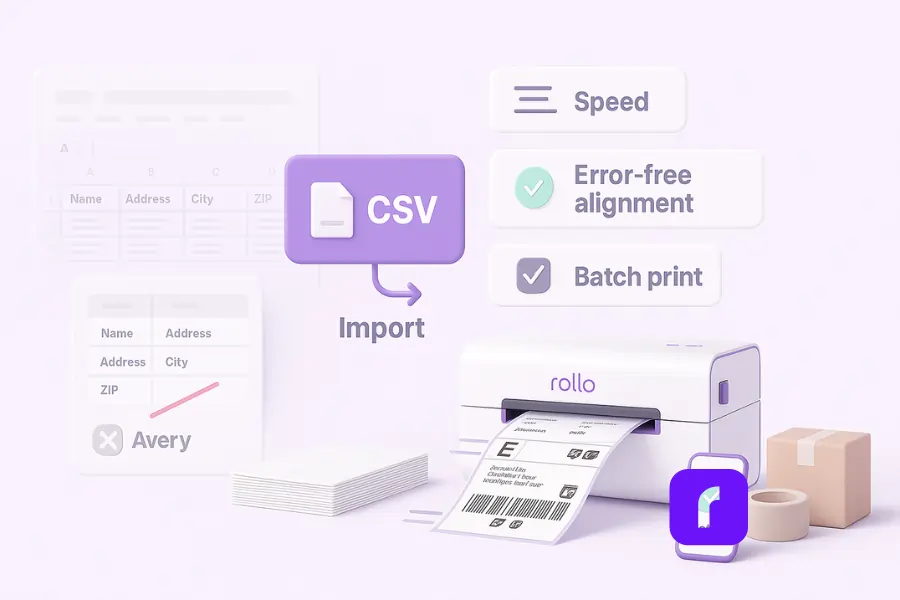
If labels are a daily task, skip sheets. Import a CSV into Rollo Ship, select your service, and print 4×6 thermal labels straight away. It’s faster, cleaner, and harder to break.
Short version: Templates are fine for the occasional mailer. For online sellers, a thermal workflow is the smarter long-term move.
Implementation checklist (copy, paste, ship)
Use this quick list to avoid rework. Follow it once; keep it handy.
- 📂 Clean Excel headers (first row).
- 🔢 Verify zip codes and street addresses.
- 🏷️ Pick the right Avery product number in Word.
- 👣 Insert merge fields and update labels.
- 👀 Preview results and run a test print on plain paper.
- ✅ For scale: export CSV → import into Rollo Ship → batch print 4×6.
If anything looks off, confirm the Avery code, set scale to 100%, adjust margins slightly, and re-run a plain-paper test before using label sheets.
Final Words
Mail Merge still works—and you just learned the clean way to do it. But if order volume keeps rising, the smart money is on CSV → Rollo Ship → thermal print. It saves minutes on each batch and slashes reprints. Less fiddling. More shipping.
Follow Rollo on:
Frequently Asked Questions About How to Print Mailing Labels from Excel
📌 Q: Can I print mailing labels without using Microsoft Word?
💭 A: Yes. You can build a grid in an Excel spreadsheet and print directly. But it’s easy to misalign. Do a test print on plain paper. If you print often, switch to Mail Merge or import a CSV into Rollo Ship.
📌 Q: How do I fix Excel mailing label misalignment?
💭 A: Confirm the label template and product number. Set print scale to 100%. Trim spacing in the address block and check margins. Use Preview Results in Word, then Finish & Merge → Edit Individual Documents and test.
📌 Q: What’s the best Avery label for address sheets?
💭 A: For basic address label sheets, Avery 5160 is a common example. Always match the code on your box inside the label options dialog box and verify the details like height and pitch.
📌 Q: Can I use Google Sheets instead of Excel?
💭 A: If you sell through mainstream retail or marketplaces that require it, yes. For internal inventory, you can use Code128 or your own SKU system. Confirm each channel’s services and optional fields before you commit.eliminates ongoing ink costs. It’s a great printer to pair with your existing setup.
📌 Q: What if my labels keep misprinting or shifting?
💭 A: Yes. Export as .xlsx or CSV. In Word, Select Recipients → Use an Existing List and locate the file. The connection works the same. If you’re using a shipping app, just upload the CSV.
📌 Q: What should I check before a big print run?
💭 A: Do one test print. Check zip codes, spacing, and the first label. Confirm barcodes and line breaks. If you’re sending many orders, import into Rollo Ship and batch print.


