
Shipping label thermal printer
Print 4×6 shipping labels with no ink, at one label per second
A thermal printer uses heat to print 4×6 labels with no ink, toner, or ribbons. The Rollo Wireless Thermal Printer (X1040) prints about one label per second at 203 dpi, so high-volume shipping stays fast and cheap.
In stock · free ground shipping · 500 labels included · 30-day returns.

Shipping label thermal printers use heat to print 4×6 shipping labels without ink or toner, which makes them faster and cheaper to run than inkjet or laser printers. Most print at about 203 dpi and up to one label per second, producing clear, carrier-scannable barcodes for high-volume e-commerce shipping.
What a thermal printer actually does
Thermal printing forms an image with heat. A print head warms heat-sensitive label stock, and the paper darkens where the barcode and address need to be — no cartridges in the path.
That single focus is why these printers win for shipping. They are built for one job, so they print fast, run with few moving parts, and turn out clean, long-lasting 4×6 labels at volume.
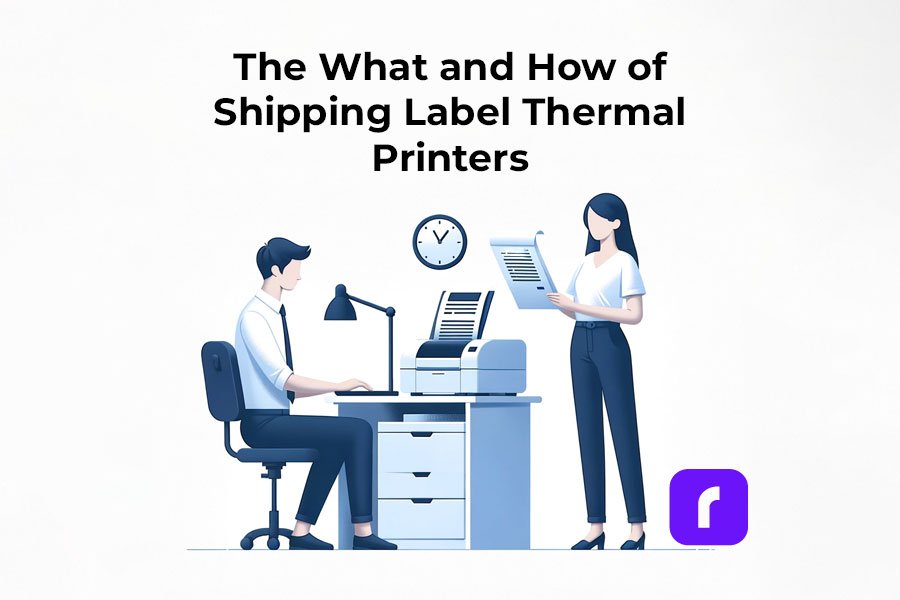
Thermal vs inkjet or laser
An office printer can make a label. It just costs more and slows you down once volume climbs.
| What matters | Thermal label printer | Inkjet / laser |
|---|---|---|
| Consumables | Thermal labels only — no ink | Ink or toner, plus paper |
| Speed | Up to ~1 label/second | Slower, page-at-a-time |
| Label format | Native 4×6 adhesive | Full sheets, cut and tape |
| Maintenance | Few moving parts | More parts, more downtime |
Why high-volume shippers switch
Speed
The Rollo Wireless prints one 4×6 label per second at 203 dpi — built for time-sensitive batches.
Lower running cost
No ink, toner, or ribbons. You buy thermal labels and nothing else, so cost per label stays low.
Reliability
A roughly 650,000-label lifespan and few moving parts mean consistent printing with little maintenance.
Shop the Rollo Wireless Thermal Printer or order the Rollo USB Printer.
Choosing the right printer
There are two thermal types. Direct thermal prints with heat alone and suits shipping labels you use right away. Thermal transfer uses a ribbon for labels that must last for years.
For shipping, weigh four things: the printer's footprint, its speed against your daily volume, how it connects (USB or wireless), and whether it plays nicely with the platforms you sell on.

Set up the Rollo Wireless in about 10 minutes
Setup takes 5 to 10 minutes and needs no driver. You connect by Bluetooth, switch to Wi-Fi for daily use, and the printer detects label size for you.
Install the free Rollo App
Download and register on the Rollo App. The setup guide in the box has a QR code to get there fast.
Connect Bluetooth, then Wi-Fi
Pair by Bluetooth to set up, then move to Wi-Fi for everyday printing. No driver install on the wireless model.
Load labels and print
Drop in 4×6 labels — intelligent label detection sizes them automatically — and run your first test label.
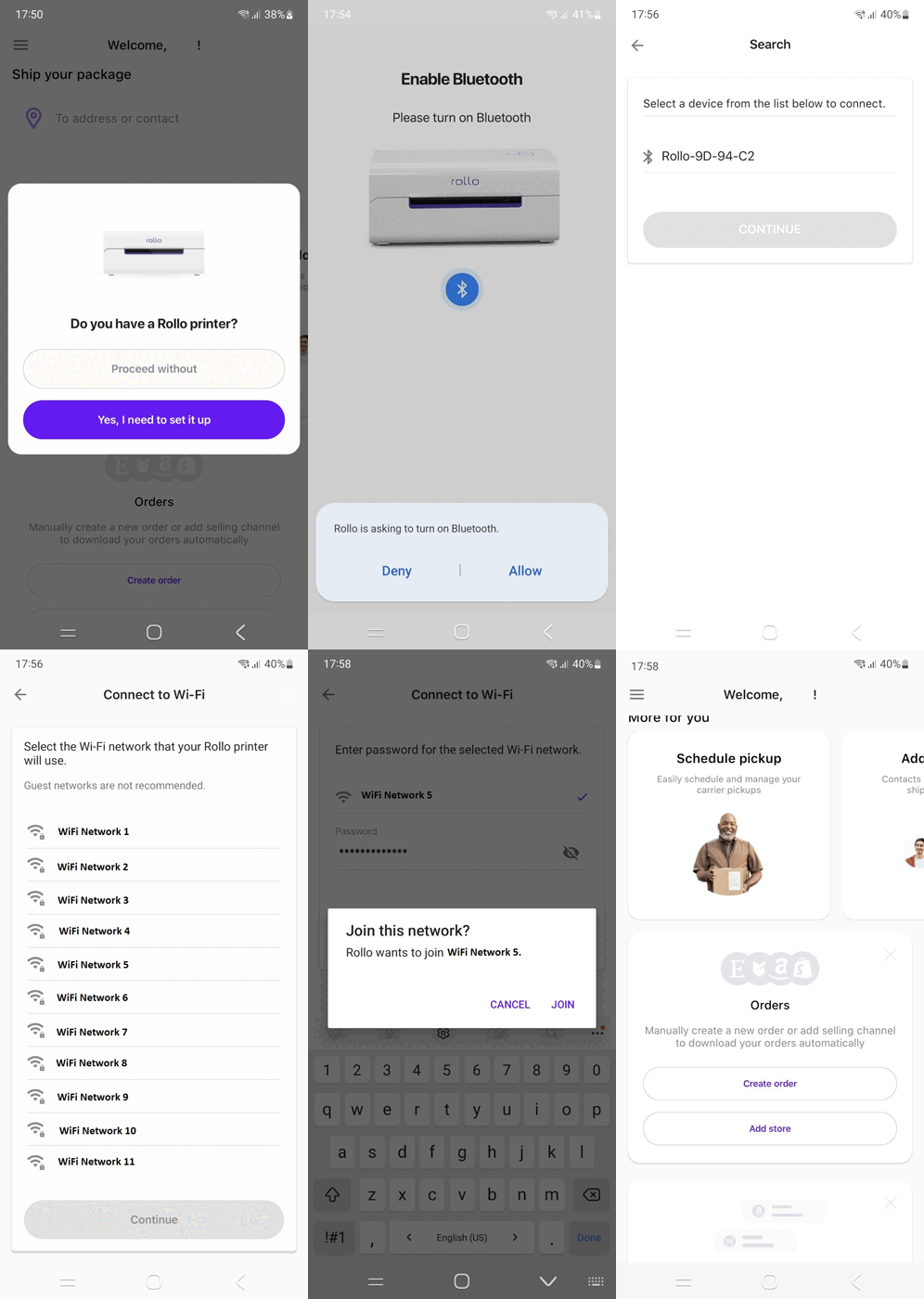
In the box: the printer, AC adapter, USB-B to USB-A cable, LED color guide, setup guide, sample label, support card, 500 free 4×6 labels, and an alcohol pad. Step-by-step help lives on the Rollo printer setup page.
Set up the Rollo USB Printer (X1038)
The USB model needs a quick driver install, then it prints from any computer.
1 · Download the driver
Grab the latest Windows or macOS driver from the Rollo setup page and run the installer.
2 · Install and restart
Follow the wizard, accept the license, finish, and restart so your system loads the driver.
3 · Connect over USB
Plug the printer into your computer with the supplied cable. It should appear in your printer settings.
4 · Run a test print
Print a test label to confirm everything works. If it is not recognized, reinstall the driver or contact Rollo support.
Quick fixes and maintenance
Won't connect
Check the cable on USB models; check Wi-Fi signal and settings on wireless. Reinstall the driver if the printer is not recognized.
Labels misfeed
Reload labels so the sensor finds the gap, then recalibrate using the automatic label-detection feature.
Faint or fuzzy print
Power down, let it cool, and wipe the print head with an alcohol swab. Skip water and harsh chemicals.
Stay current
Keep the Rollo app and drivers updated to avoid formatting and connection errors and to get new features.
Handle safely
The print head is hot right after printing — don't touch it. Always power off and unplug before maintenance.
Use quality labels
Match label size, gap or black-mark sensing, and material to your printer. Cheap stock jams and prints unscannable barcodes.
Print labels free with Rollo Ship
Your printer handles the paper. Rollo Ship handles the rates. It is a free multi-carrier platform that compares USPS, UPS, FedEx, Canada Post and Purolator, imports your orders into one queue, and batch-prints straight to your Rollo printer.
No subscription · no card to start · web, iOS and Android.
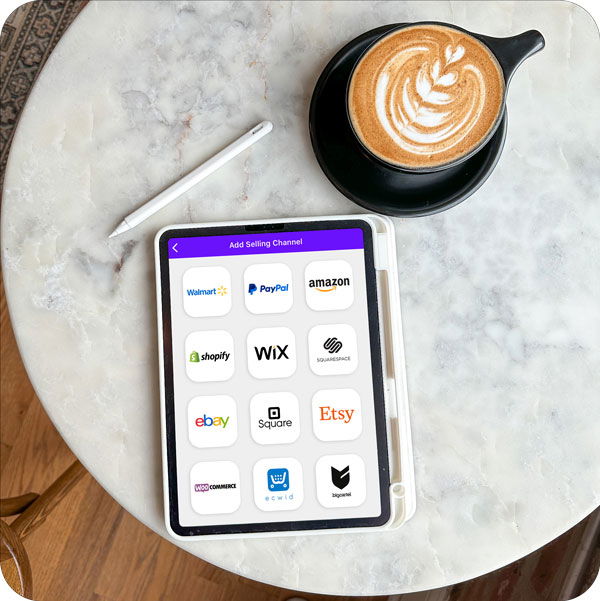
Print from your store, in 4×6
Connect a channel once in Rollo Ship, then print every order in the 4×6 format your thermal printer wants. The flow is the same for every connected marketplace.
Shopify
Connect your store under Connections, then create and print 4×6 labels per order. More in the Shopify shipping labels handbook and on the Rollo Shopify integration page.
eBay
Link eBay, then choose the 4×6 PDF format at label purchase. See how to print eBay shipping labels and the Rollo eBay integration page.
Amazon
Connect your seller account to print customer-order, ASIN, and FBA labels in 4×6. Details on the Rollo Amazon integration page.
Also connects with WooCommerce, Walmart, Wix, Magento, Big Cartel, BigCommerce, PayPal, Shift4Shop and Ecwid. For Depop, Mercari or Poshmark, print straight from the label file — Rollo prints from any file, app or device. Selling on Etsy too? Rollo prints discounted Etsy labels and earns Rollo Rewards on every order.
Tighten the whole workflow
Batch print
Select dozens or hundreds of orders and print in one run. Batching is where a thermal printer earns its keep.
Match labels to packing order
Print in the sequence you pack, so labels and parcels line up and nothing gets mismatched.
Let software pick the carrier
Rollo Ship compares USPS, UPS, FedEx, Canada Post and Purolator and recommends the cheapest service before you print.
Per-label fees drop as you ship: your first 200 labels are free, then 5¢ each, down to 1¢ at the VIP tier. Higher tiers also unlock printer discounts and a free Rollo printer. See how Rollo Rewards lowers your costs.
Thermal printer questions, answered
Is a thermal label printer cheaper than a regular office printer?
For anyone printing labels regularly, yes. A thermal printer uses no ink, toner, or ribbons — just 4×6 thermal labels — so you waste fewer full sheets and skip cartridge costs. The upfront price is higher, but the lower running cost and faster printing usually pay it back within a few months of steady shipping.
What is the fastest way to print bulk shipping labels?
Pair shipping software that supports batch printing with a 4×6 thermal printer. Import orders from your sales channels into one queue, select dozens or hundreds at once, and print them in a single batch. Thermal printers are quickest because they are inkless, print continuously, and need no cutting or taping. The Rollo Wireless prints about one 4×6 label per second.
Do thermal shipping labels fade, and are they safe for long-distance shipping?
Thermal labels are built to stay scannable through the full delivery journey, including long-distance and international lanes. They can fade with prolonged direct sunlight, high heat, or abrasion, but they hold up fine under normal carrier handling. For long storage or harsh conditions, it is simplest to reprint a fresh label rather than rely on an old one.
Will a thermal printer work with my carrier accounts and marketplace dashboards?
Yes, as long as you choose the 4×6 label format. USPS, UPS and FedEx, plus marketplaces like Shopify, Amazon, eBay and WooCommerce, all support 4×6 labels that thermal printers handle. You can print from the carrier portal directly, or connect everything through Rollo Ship and print across channels from one dashboard.
Can I use any brand of thermal labels?
Often yes, as long as the labels match your printer's size, gap or black-mark sensing, and material. Quality matters, though: cheap labels can jam, fade faster, or print fuzzy barcodes that fail to scan. Choose labels rated for shipping and tested with thermal printers, especially if you ship high volumes or across multiple carriers.
What are the most common thermal printer issues, and how do I fix them?
The usual three are poor print quality, labels not feeding, and the printer not being recognized. Most are quick fixes: clean the print head with an alcohol wipe, reload the labels so the sensor finds the gap, recalibrate the label size, and check the USB or Wi-Fi connection. Keeping the app and drivers updated prevents many formatting and connection errors.
Ship faster, starting today
Print inkless 4×6 labels at one per second with the Rollo Wireless Printer, and compare USPS, UPS, FedEx, Canada Post and Purolator rates free in Rollo Ship.
Free to start · no card required · 500 labels included with every printer.


